01 / Monitor
Live status at a glance
Track CPU, memory, storage, and network per device—with clear expiry times.
Console · kvmsync
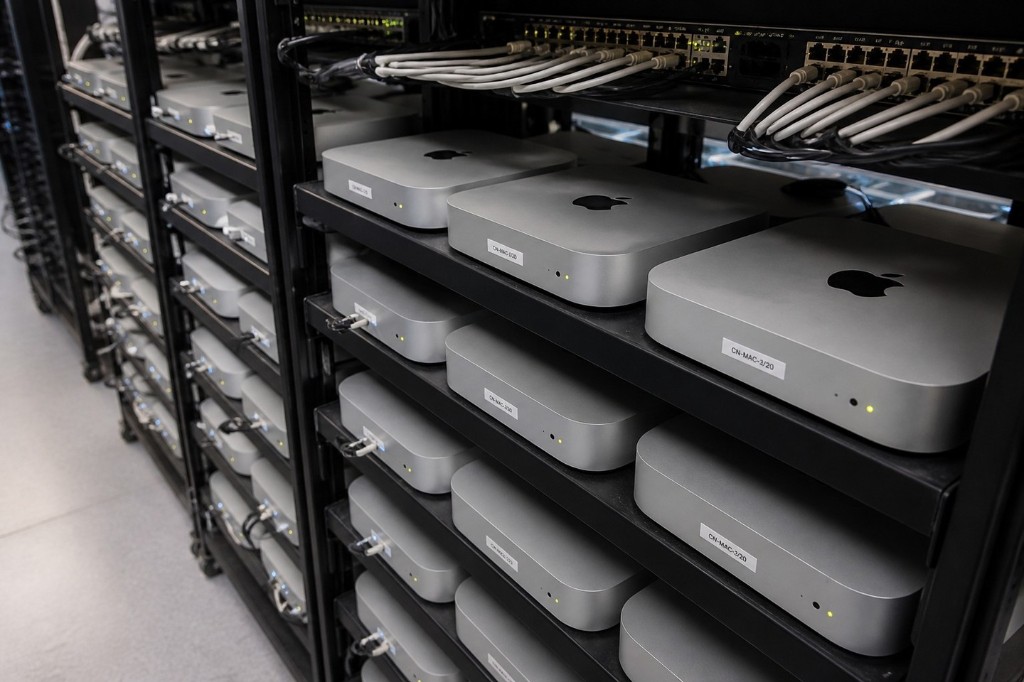
Manage Mac mini bare-metal nodes, check status, and get SSH / VNC credentials.
Order tracking · remote access · tickets · NOC 24/7
Getting started
From sign-in to remote access—all in the browser.
Sign in with your registered email, or buy a node first and link the account.
View all online devices in the Fleet panel and switch details in one click.
Copy the SSH command or open VNC desktop and start developing.
For network or instance issues, NOC responds 24/7.
Console capabilities
The same real-hardware delivery as the homepage—take over all resources after sign-in.
Track CPU, memory, storage, and network per device—with clear expiry times.
Copy SSH in one click; open VNC desktop in the browser—no client install.
Track shipping and activation; submit tech tickets anytime. NOC 24/7.
Get started
Auto-delivered ~5 minutes after payment. Sign in to get SSH and VNC credentials.
Ops Center
Live bare-metal status, one-click SSH / VNC credentials, order and support tracking.
Billing & support